Pricing checked
July 23, 2026
Checked Canva, Microsoft 365, and Microsoft Support pages for free-plan access, paid-plan pricing, export formats, desktop/web limits, and AI feature availability.
Presentation Tools · Comparison · Pricing checked July 2026
One makes you look like a designer.
The other makes your data look like a strategy.
Neither does both equally well.
The short answer: use Canva if you want a polished, design-first presentation without design skills — it is faster to start, has a generous free plan, and the templates are genuinely beautiful. Use PowerPoint if your slides are data-heavy, you need live charts linked to Excel, advanced animations, or you work inside a Microsoft 365 environment where it is already paid for.
Updated with official pricing, feature checks, and screenshot evidence.
Review method
This page was updated after checking official Canva, Microsoft 365, and Microsoft Support pages for pricing, exports, free web access, desktop app limits, Copilot, Designer, and offline/presenter workflows.
Pricing checked
July 23, 2026
Checked Canva, Microsoft 365, and Microsoft Support pages for free-plan access, paid-plan pricing, export formats, desktop/web limits, and AI feature availability.
Feature criteria
9 practical checks
Compared templates, editor speed, data/charts, offline access, collaboration, AI, export formats, presenter workflows, and student/business fit.
Hands-on screenshots
Add 5 images
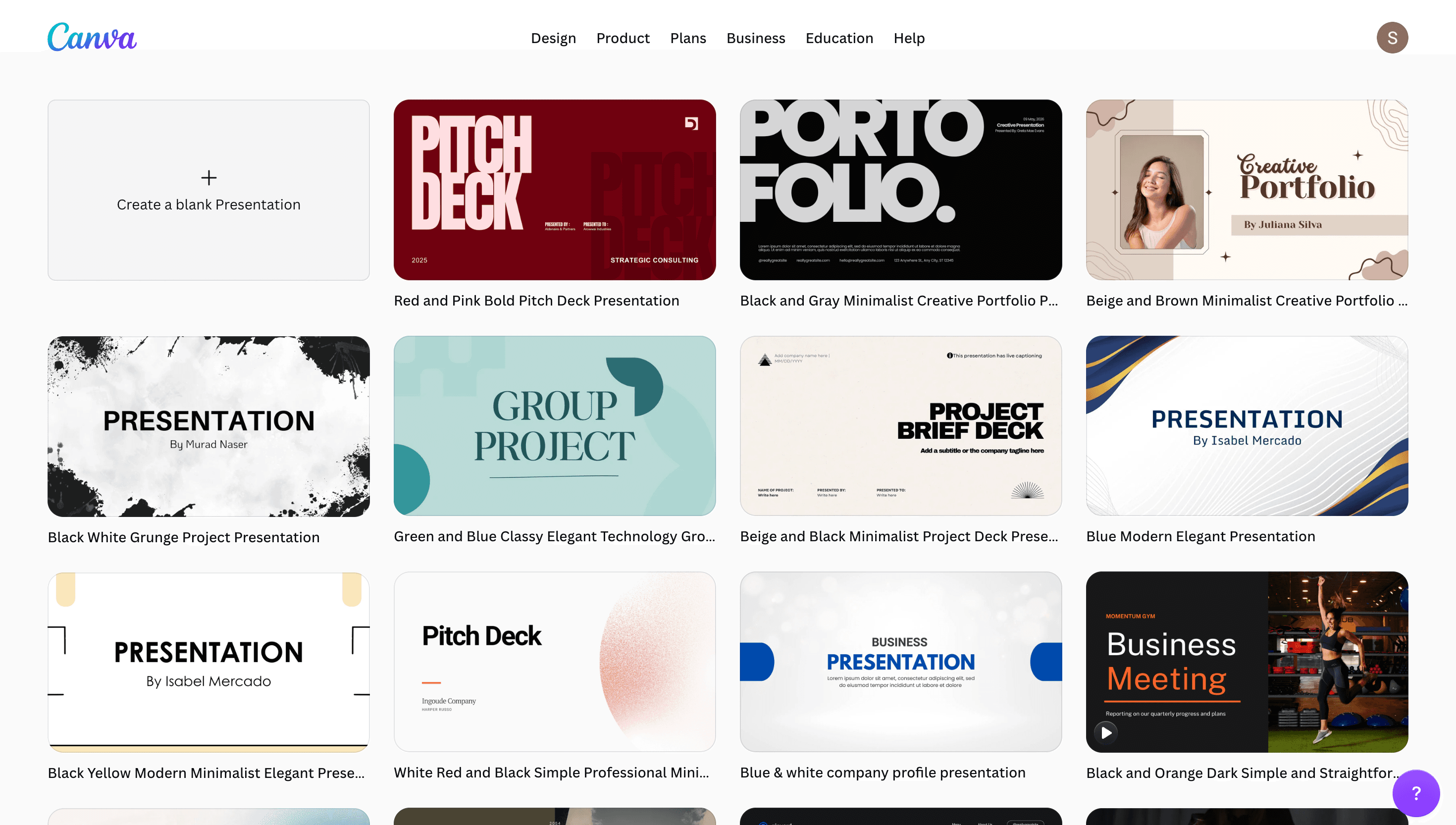
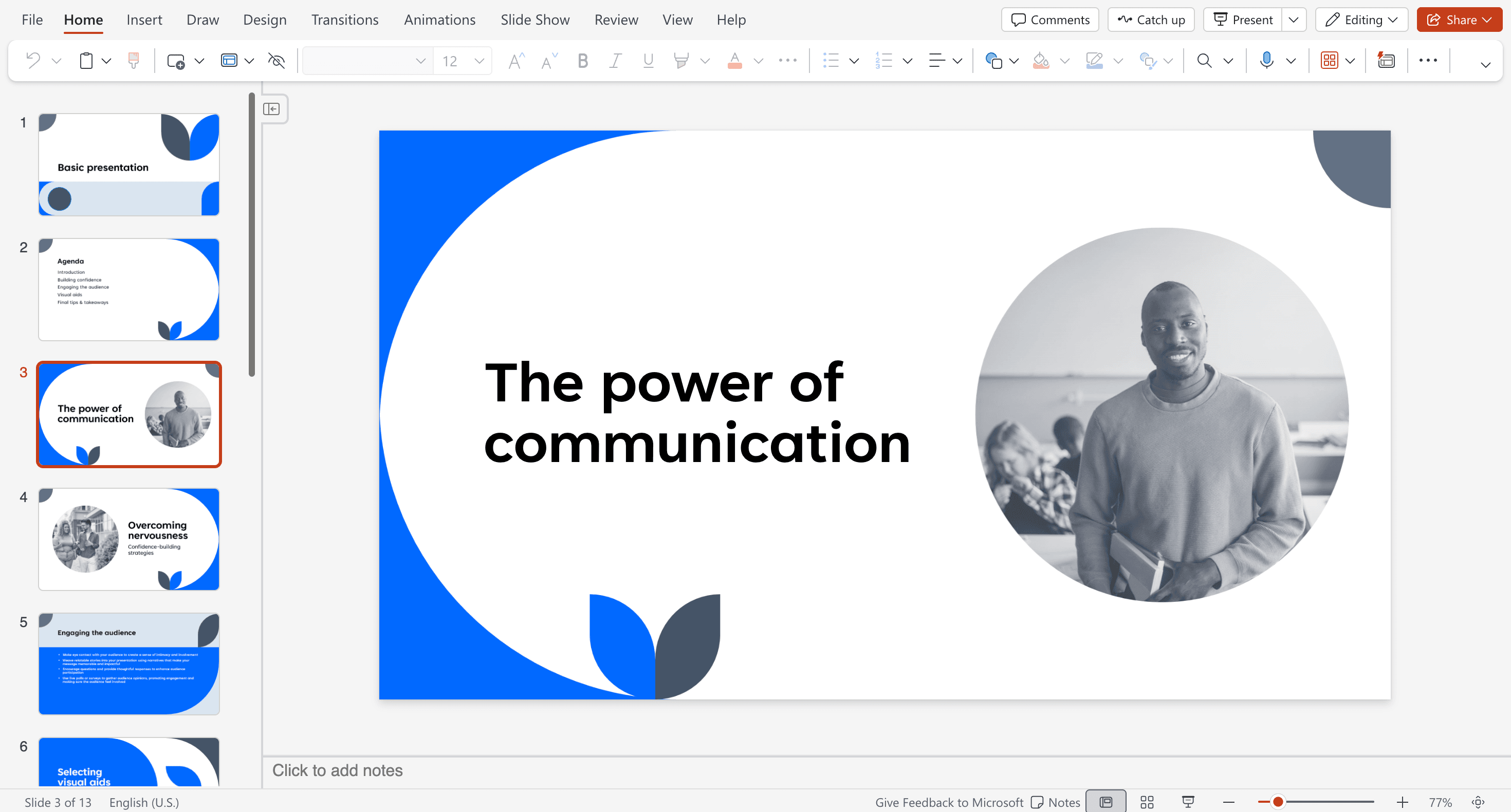
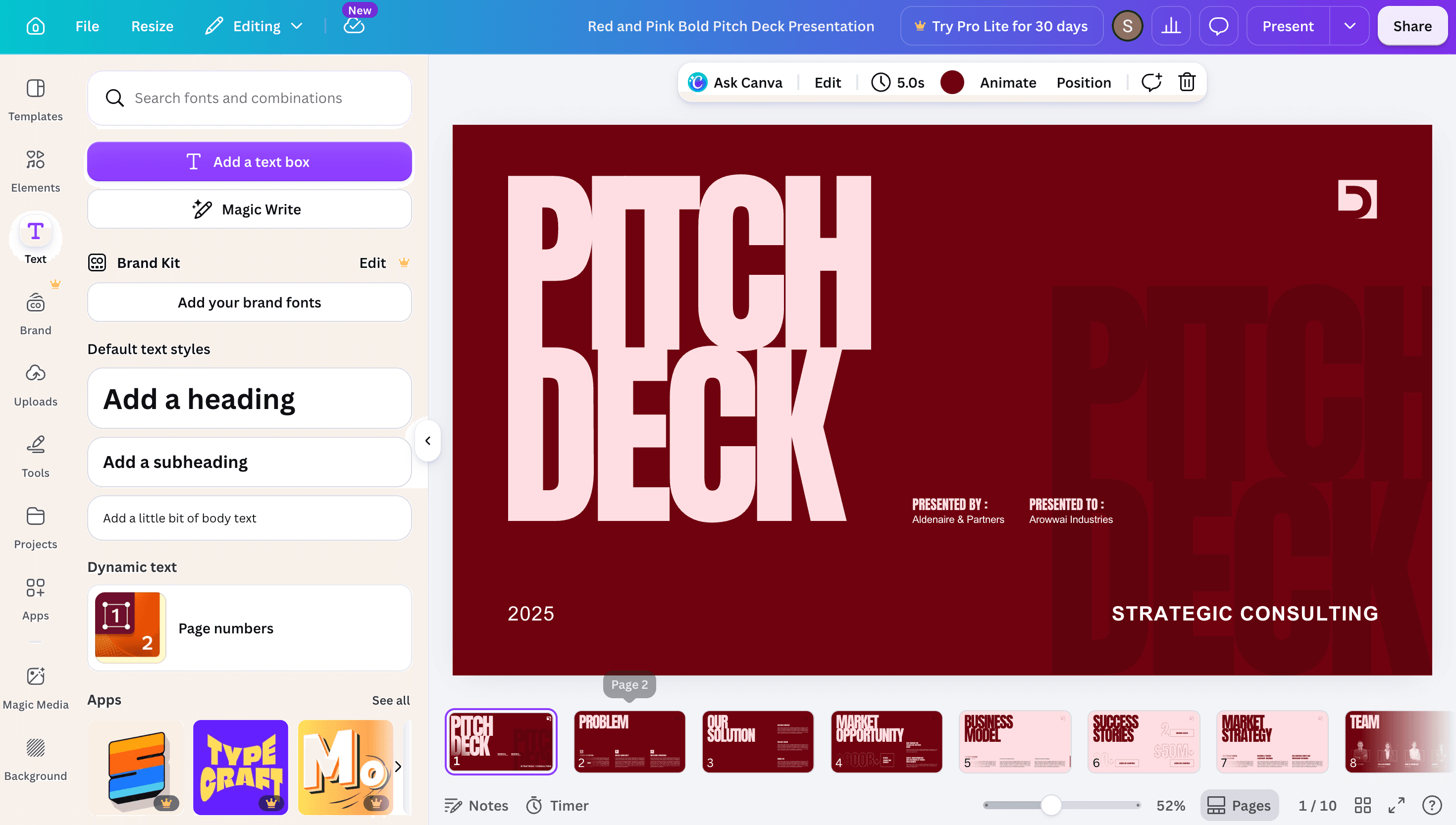
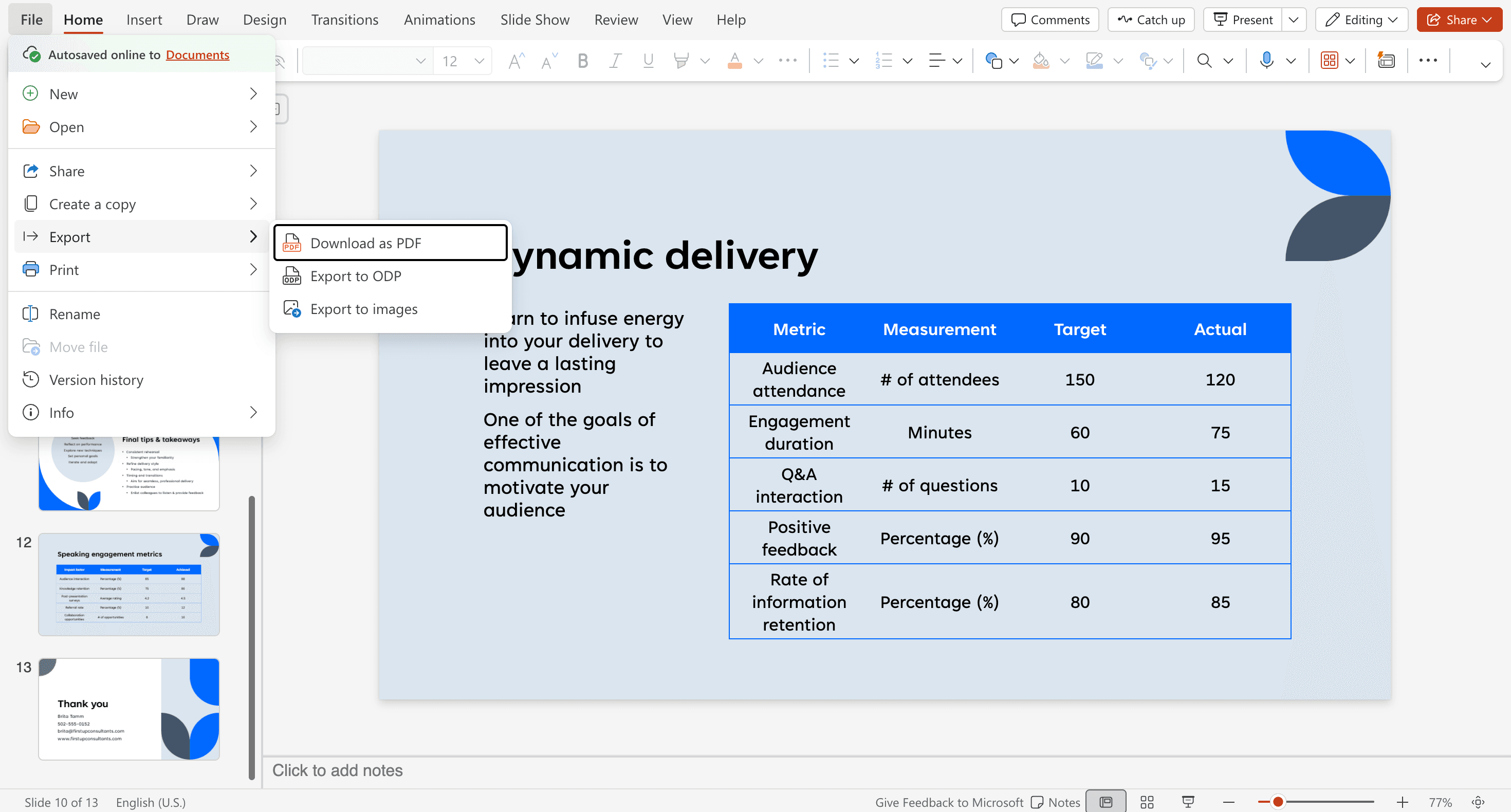
Use original screenshots for Canva templates/editor/export and PowerPoint editor/presenter or export workflows. Do not use stock images as proof.
Reader-first verdict
Workflow over winner
Canva is usually faster for a beautiful deck. PowerPoint is usually safer for Microsoft 365 teams, offline presenting, and Excel-backed data slides.
Screenshot evidence
These images should be original screenshots from your own Canva and PowerPoint checks. Canva needs to prove template speed and easy visual editing. PowerPoint needs to prove deck control and Microsoft workflow fit.
Quick verdict
Find your use case below. No reading required.
| Your situation | Better choice |
|---|---|
| Making a great-looking presentation with no design skills | Canva |
| Data-heavy slides with charts, tables, and Excel data | PowerPoint |
| Collaboration with non-designers or clients | Canva |
| Corporate or enterprise team presentations | PowerPoint |
| Social media graphics, flyers, and marketing materials | Canva |
| Working offline without an internet connection | PowerPoint |
| Free plan to get started today | Canva |
| Advanced animations and slide transitions | PowerPoint |
| Student presentations and academic work | Canva (for design) · PowerPoint (for data) |
| Investor decks and sales presentations | Canva (for visuals) · PowerPoint (for data) |
| Microsoft 365 / Teams ecosystem users | PowerPoint |
What are they?
The fastest way to make a beautiful presentation — no design skills needed, free to start.
Best for
+ Non-designers who need professional-looking slides fast
+ Marketers, content creators, and small business owners
+ Students who want their presentations to stand out visually
+ Teams that include non-technical collaborators
+ Anyone who needs design output beyond just presentations
Avoid if
- Your slides are data-heavy with charts linked to live spreadsheets
- You work inside a Microsoft 365 / Teams ecosystem
- You need advanced slide animations or complex transitions
- You need to work offline without internet access
The industry standard for business presentations — unmatched for data, animations, and enterprise workflows.
Best for
+ Business professionals in corporate or enterprise environments
+ Anyone presenting data-heavy content with live charts from Excel
+ Microsoft 365 subscribers who want everything in one ecosystem
+ Presenters who need advanced animations and custom transitions
+ Teams using SharePoint or Teams for document collaboration
Avoid if
- You are not a designer and need a template to do the heavy lifting
- You want to create social media graphics or marketing materials
- You need a generous free plan without a Microsoft subscription
- Your team includes non-Microsoft users who need easy access
The real difference
Canva is built for design-first presentations.
PowerPoint is built for data-first presentations.
If you are choosing between the two, ask yourself: does this deck need to look beautiful, or does it need to tell a story with data? The answer usually makes the decision obvious.
Head to head
Canva
Drag-and-drop interface — anyone can produce a polished presentation in under 30 minutes.
Templates handle most of the design work — you just swap in your content.
No installation required — open a browser, pick a template, start editing.
The learning curve is essentially zero for basic presentations.
PowerPoint
More capable but takes longer to learn — especially animations, master slides, and themes.
The ribbon interface is familiar to most professionals but intimidating to new users.
Requires Microsoft 365 installation or web access — setup takes a few minutes.
Once learned, PowerPoint gives more precise control than any other tool.
Canva
Very large template library — covering many industries, tones, and presentation styles.
Templates are professionally designed and immediately presentation-ready.
Magic Design AI can generate a full branded presentation from a prompt.
Design quality is consistently high without needing any design skills.
PowerPoint
Microsoft Designer AI can generate slide layouts and suggest design improvements.
Thousands of templates available, but most require customisation to look modern.
PowerPoint Copilot can create a full deck from a document or outline.
More design control once you know the tool — but the starting point is more manual.
Canva
Basic chart types available — bar, line, pie, and a few others.
Charts are manually edited — no live connection to external spreadsheet data.
Good enough for simple data points, not suitable for complex financial reporting.
Does not replace Excel or Google Sheets for data-driven presentations.
PowerPoint
Full Excel integration — charts update automatically when the source spreadsheet changes.
Every chart type available: waterfall, funnel, box plots, combination charts, and more.
Tables can pull live data directly from connected Excel workbooks.
The standard for finance, consulting, and data-heavy business presentations.
Canva
Real-time collaboration — multiple people can edit the same presentation simultaneously.
Share via link — collaborators do not need a Canva account to view.
Comments and approval workflows make client feedback straightforward.
Ideal for teams that include non-designers or non-technical users.
PowerPoint
Real-time collaboration via OneDrive — works well within Microsoft 365 environments.
Integration with Microsoft Teams means slides can be presented directly in a meeting.
Version history and track changes built into the Microsoft 365 ecosystem.
Best for organisations already standardised on Microsoft — less friction if the whole team is on 365.
Canva
Magic Design: generate a complete presentation layout from a single prompt.
Magic Write: AI-generated slide copy, headlines, and speaker notes.
Background Remover, Text to Image, and Magic Eraser for visual assets.
AI tools are accessible to everyone — free plan includes basic AI features.
PowerPoint
PowerPoint Copilot: generate a full presentation from a Word document or outline.
Designer AI suggests layout improvements as you add content to slides.
Copilot can rewrite copy, summarise content, and adjust tone across a deck.
Copilot availability depends on your Microsoft 365 plan, account type, and organisation settings.
Canva
Primarily web-based — do not rely on it as your main offline presentation tool unless Canva's offline features are available in your account.
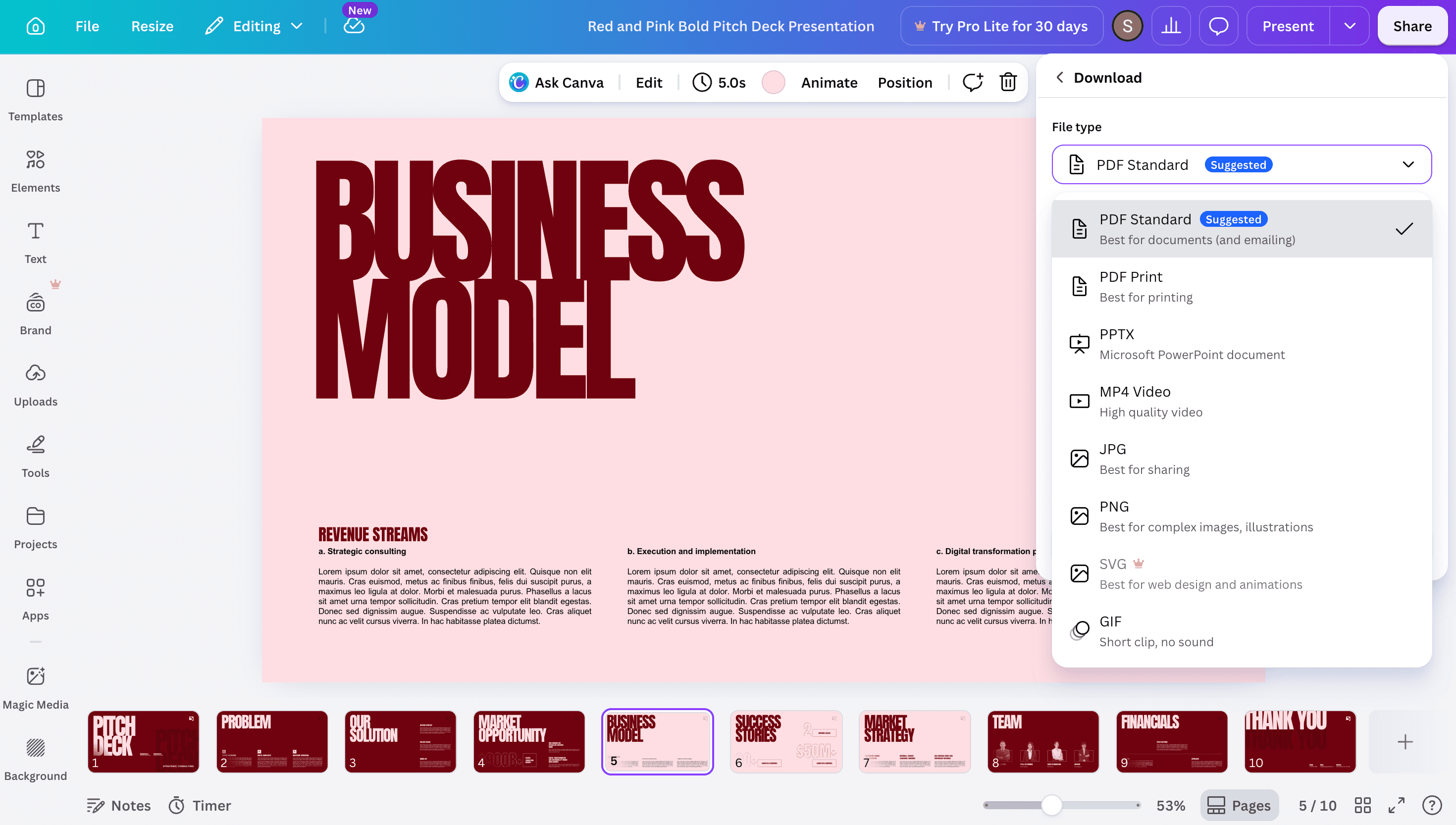
Exports to PDF, MP4, .pptx, and PNG — standard formats that work anywhere.
Canva's own ecosystem: Canva Docs, Canva Video, Canva Websites.
Not part of Microsoft or Google's productivity suites.
PowerPoint
Desktop app works fully offline — edit and present without any internet connection.
Native to Microsoft 365 — seamlessly integrated with Word, Excel, Teams, and Outlook.
Files saved to OneDrive and SharePoint are accessible across all devices.
The default format (.pptx) is the universal standard accepted everywhere.
Canva
Free plan is genuinely useful — drag-and-drop editor, many design types, 5GB storage, and limited AI usage.
Canva Pro is listed at US$144/year for one person when checked in July 2026.
Canva for Education may unlock premium features for eligible schools, teachers, and students.
Best free tier of any design or presentation tool.
PowerPoint
PowerPoint for the web is available free with a Microsoft account, but the desktop app has deeper features.
Microsoft 365 Personal is listed at US$9.99/month or US$99.99/year when checked in July 2026.
Microsoft 365 Family is listed at US$12.99/month or US$129.99/year and covers up to 6 people.
Free web PowerPoint is useful, but features like custom animation editing, offline editing, and some advanced design/chart workflows depend on the desktop app.
Many students and employees get Microsoft 365 free through their school or employer.
Pros and cons
Pros
+ Large template and asset library — polished slides without heavy design work
+ Completely free plan that covers most individual use cases
+ Drag-and-drop interface — anyone can use it in minutes
+ Strong AI tools: Magic Design, Magic Write, Background Remover
+ Covers much more than presentations: video, social, docs, websites
Cons
- No live Excel or Google Sheets data integration for charts
- Primarily web-based — not the safest choice if offline editing or presenting is critical
- Advanced animations are limited compared to PowerPoint
- Exported .pptx files sometimes lose formatting on import
Pros
+ Full Excel integration — charts update live when source data changes
+ Most advanced animation and transition system of any presentation tool
+ Deep Microsoft 365 integration: Teams, SharePoint, OneDrive
+ Works offline — no internet required once installed
+ Copilot in PowerPoint can draft, rewrite, summarize, and improve presentations when your license includes it
Cons
- Free access is mostly the browser version; the full desktop app requires a Microsoft 365 plan or one-time Office purchase
- Steeper learning curve to unlock advanced features
- Templates are less visually polished than Canva out of the box
- Overkill if you just need a clean, good-looking deck quickly
Side by side
| Learning curve | Very easy | Moderate |
| Templates | Very large, design-first library | Many templates, more manual |
| Free plan | Yes — useful free plan | Yes — free web app with limits |
| Offline use | Not ideal for offline workflows | Yes — desktop app |
| Live chart data | No | Yes — Excel integration |
| AI features | Magic suite + AI allowances | Copilot/Designer where licensed |
| Animations | Basic | Advanced — full control |
| Export to .pptx | Yes | Native format |
| Collaboration | Real-time, excellent | Yes (OneDrive / Teams) |
| Microsoft 365 sync | No | Native |
| Best for | Design-first, fast presentations | Data-heavy, enterprise, complex decks |
By use case
Use Canva if
→ You want your presentation to look visually impressive with minimal effort
→ You are making a class project, pitch, or creative assignment
→ Your school provides Canva for Education or another Canva plan
→ You need to add graphics, social media visuals, or infographics to your slides
Use PowerPoint if
→ Your university or school provides Microsoft 365 for free — PowerPoint is included
→ Your professor requires a .pptx submission and you want to avoid conversion issues
→ Your presentation includes research data, charts, or academic references
→ You are learning PowerPoint for career reasons — it is the corporate standard
Best workflow
1. Check if your institution provides free Canva for Education or Microsoft 365
2. Use Canva for the visual design of the presentation
3. Export to .pptx if your professor requires PowerPoint format
4. Open in PowerPoint to verify formatting before submission
Use Canva if
→ You need a polished deck fast and do not have a designer on your team
→ You are presenting to clients or external audiences who are not in your Microsoft ecosystem
→ Your deck is primarily visual — case studies, brand storytelling, sales narratives
→ You want multiple team members to collaborate regardless of their software
Use PowerPoint if
→ Your organisation runs on Microsoft 365 — PowerPoint is already paid for
→ Your deck contains financial models, charts, or data that needs to stay live
→ You are presenting within Microsoft Teams directly from the app
→ Your company has PowerPoint templates that must be used for brand compliance
Use Canva if
→ You need slides and social media assets from the same tool without switching apps
→ You are designing pitch decks, media kits, or brand presentations for external audiences
→ You want AI-generated visuals, backgrounds, and layouts without a design background
→ You collaborate with freelancers or clients who may not have PowerPoint
Use PowerPoint if
→ Your marketing reports are data-heavy with charts pulling from Excel
→ You work inside a company that standardises on Microsoft 365
→ You need to present live data — campaign metrics, pipeline reports — that updates automatically
Best workflow
1. Design the visual shell of your deck in Canva using a branded template
2. Export to .pptx and open in PowerPoint
3. Replace placeholder charts with live Excel-linked data charts in PowerPoint
4. Present from PowerPoint so data stays current
Use Canva if
→ Your team includes people outside Microsoft 365 who need editing access
→ You want a fast-turnaround deck for a pitch or proposal without IT involvement
→ Your brand team has set up Canva with approved templates, fonts, and brand colours
Use PowerPoint if
→ Your organisation has a Microsoft Enterprise agreement — PowerPoint is already covered
→ Compliance or legal requires all documents to stay within Microsoft's infrastructure
→ Your IT team manages SharePoint and OneDrive for document storage and access control
→ Your decks regularly include live financial data, dashboards, or Excel-backed charts
Bottom line
If you are starting from scratch and need a great-looking presentation today, Canva is the faster, more accessible choice. The templates are genuinely polished, the free plan is generous, and you do not need design experience to get a professional result.
If your presentation needs to tell a story through data — with charts linked to live spreadsheets, complex animations, or tight integration with Microsoft Teams — PowerPoint is the better tool. It is also the right choice if your organisation already pays for Microsoft 365 and PowerPoint is effectively free as part of the subscription.
FAQ
Yes — Canva can export any presentation as a .pptx file that opens in PowerPoint. The conversion works well for most designs, but complex layouts, custom fonts, and certain animations may not transfer perfectly. If your final deliverable needs to be a .pptx file, test the export before your deadline and adjust anything that shifted in translation.
It depends on what the presentation needs to do. Canva is better if you need a visually polished deck quickly, you have no design skills, or your content is primarily visual storytelling. PowerPoint is better if your slides are data-heavy with charts linked to Excel, you need advanced animations, or you work inside a Microsoft 365 environment. Most professional presenters end up using both for different situations.
PowerPoint for the web is free with a Microsoft account, but it is more limited than the desktop app. When checked in July 2026, Microsoft 365 Personal was listed at US$9.99/month or US$99.99/year and includes the desktop apps plus 1TB OneDrive storage. Many students and employees get Microsoft 365 through their school or employer, so check before paying.
Use Canva for the visual design and overall presentation quality — its templates will make your deck look significantly more polished than a default PowerPoint theme. If your pitch includes data (financial projections, market size charts), build those charts in PowerPoint with live Excel data, then use Canva for everything else. Presenting from Canva is also fine since it runs in the browser without requiring software on the host computer.
Yes — export your Canva presentation as a .pptx file and open it directly in PowerPoint. Most content transfers cleanly. Where you might see differences: custom Canva fonts (PowerPoint will substitute), some background effects, and animations that do not have a direct PowerPoint equivalent. Always do a test export and review before an important presentation.
Both are worth knowing. Use Canva for visually impressive presentations where design matters — class projects, creative assignments, pitches. Use PowerPoint when your assignment requires a .pptx submission or when it includes data analysis. Check if your school provides Canva for Education access or Microsoft 365 before paying for either.
Sources
Pricing, free-plan limits, AI features, export formats, and desktop/web limitations should be checked against official pages before each major update.
Used for Canva Free, Pro, Business, storage, template/library, and AI allowance details.
Used to verify Canva's presentation conversion and download/export positioning for PDF, MP4, and PPTX workflows.
Used to verify free browser access to PowerPoint for the web and Microsoft 365 web apps.
Used for current Personal, Family, storage, desktop app, and Copilot-included plan details.
Used to verify web-app limitations, offline dependency on the desktop app, animation limits, and Excel chart editing limits.
Used to verify PowerPoint export options such as PDF, video, handouts, and file-type changes.
Used to verify Copilot creation, summarization, rewrite, design suggestions, licensing, and internet requirements.
Related guides
Canva is free to start — no credit card required. PowerPoint is included in Microsoft 365, which covers Word and Excel too. Try both on a real presentation and see which workflow suits you.