Pricing checked
July 19, 2026
Checked the public Canva and Figma pricing pages for free-plan limits, paid-plan starting points, storage, AI credits, and product access.
Design Tools · Comparison · Pricing checked July 2026
They are both called design tools.
But they are built for completely different people.
The direct answer: use Canva if you are not a designer and want beautiful results fast — social media, presentations, and marketing materials. Use Figma if you are designing a digital product, need prototyping, or are handing designs off to a developer. Choosing the wrong one will cost you time, not save it.
Updated with official pricing and feature checks from Canva and Figma.
Review method
This page was updated after checking the official Canva and Figma pricing, product, AI, and developer handoff pages, then adding original screenshots from hands-on Canva and Figma test files.
Pricing checked
July 19, 2026
Checked the public Canva and Figma pricing pages for free-plan limits, paid-plan starting points, storage, AI credits, and product access.
Feature criteria
10 practical checks
Compared ease of use, templates, AI tools, prototyping, collaboration, developer handoff, design systems, exports, mobile/offline use, and best-fit use cases.
Hands-on status
Public feature check complete
This pass uses official public product and pricing pages. Add your own Canva/Figma editor screenshots next to turn this into a fully screenshot-backed hands-on review.
Reader-first verdict
Use case over winner
The recommendation is not that one tool is universally better. Canva wins fast visual creation; Figma wins product/UI design and developer handoff.
Screenshot evidence
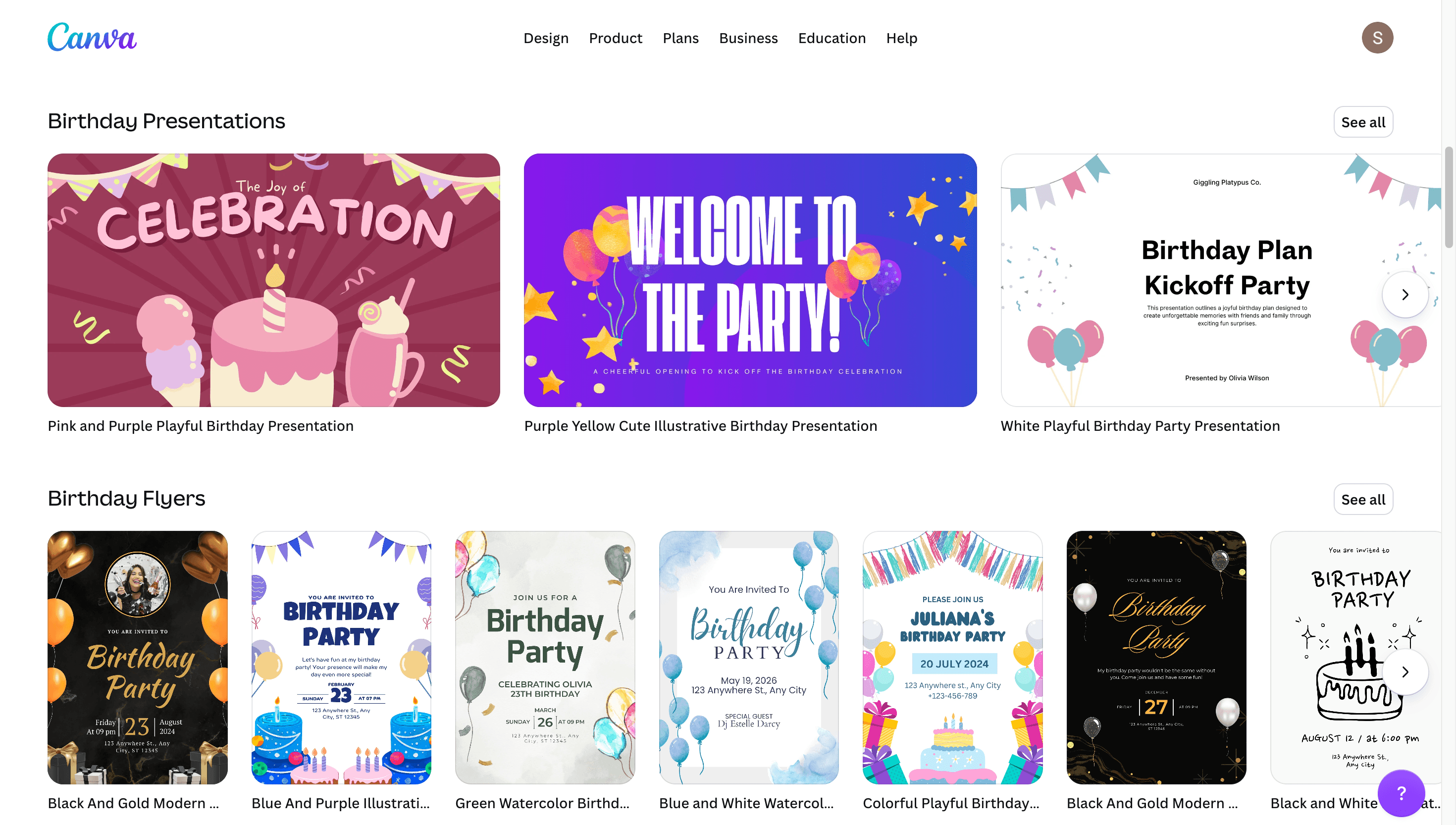
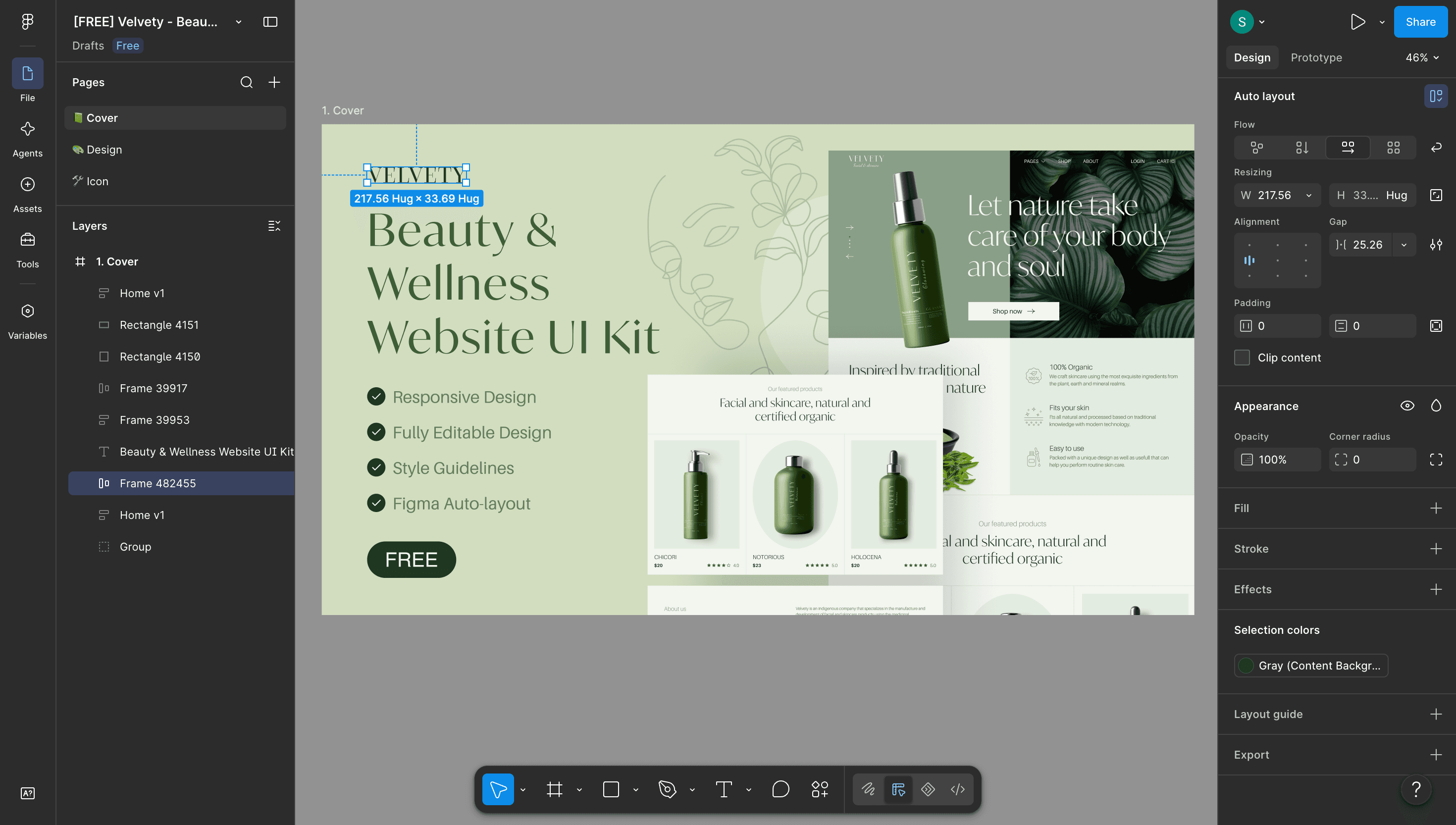
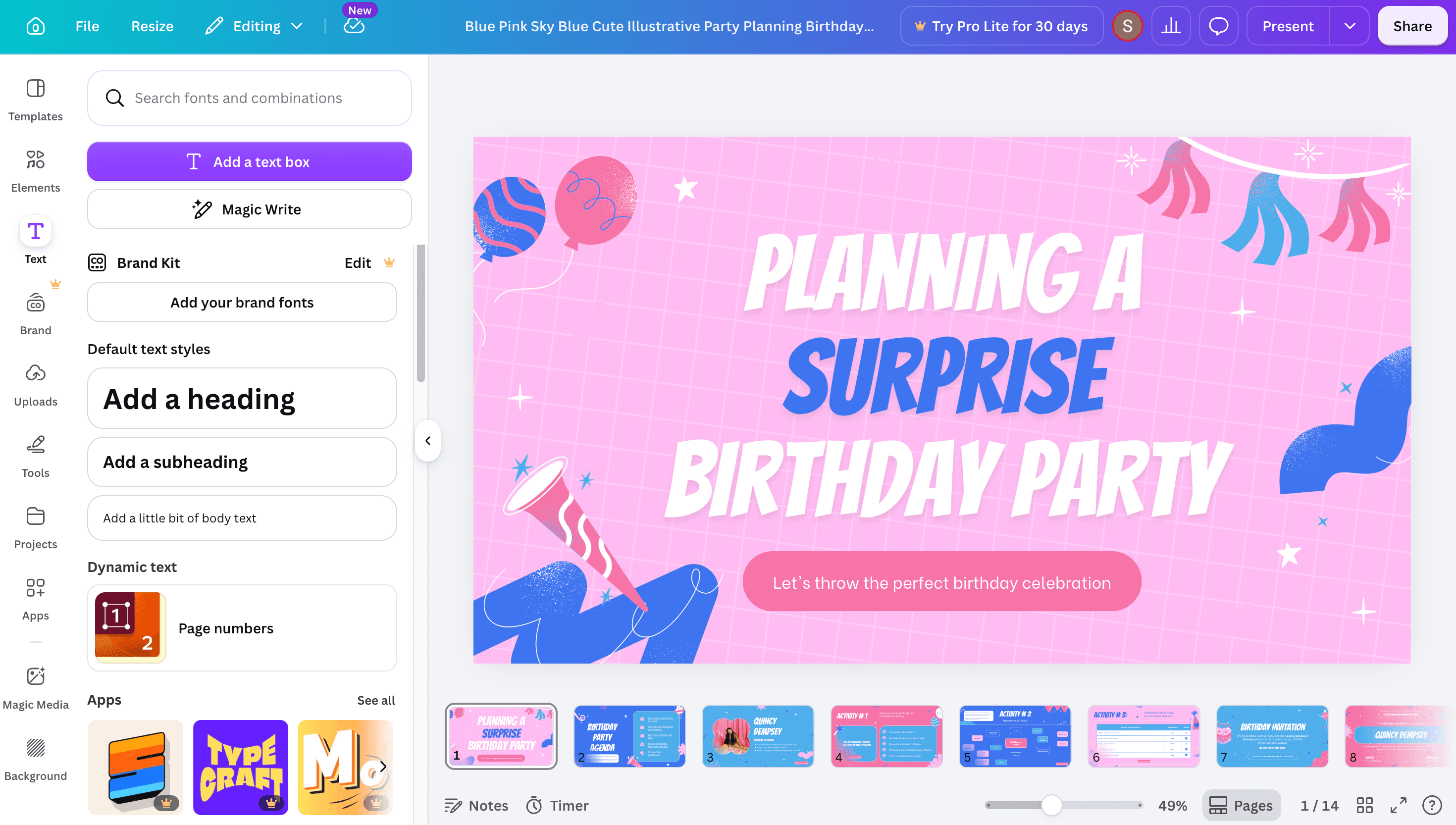
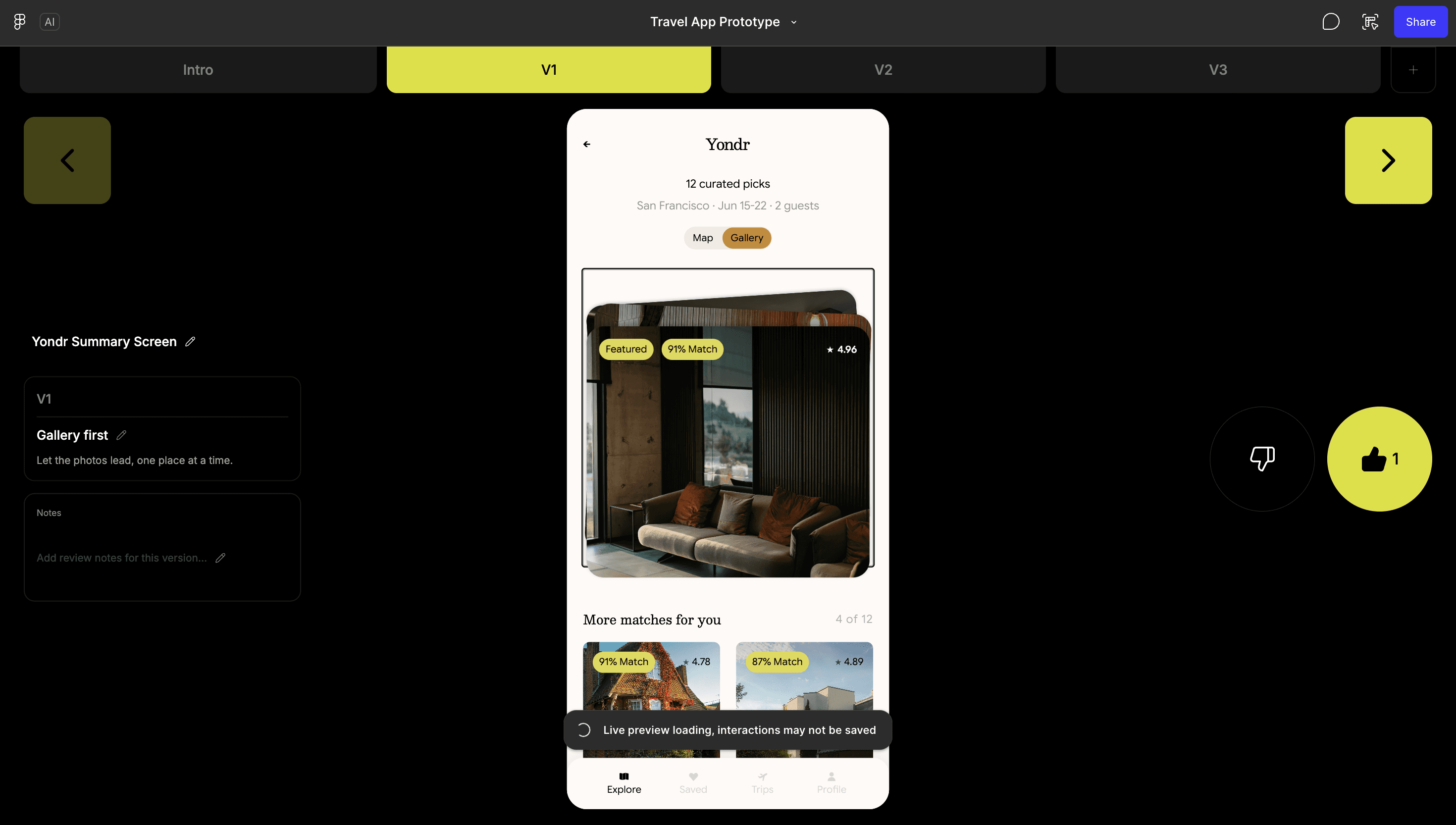
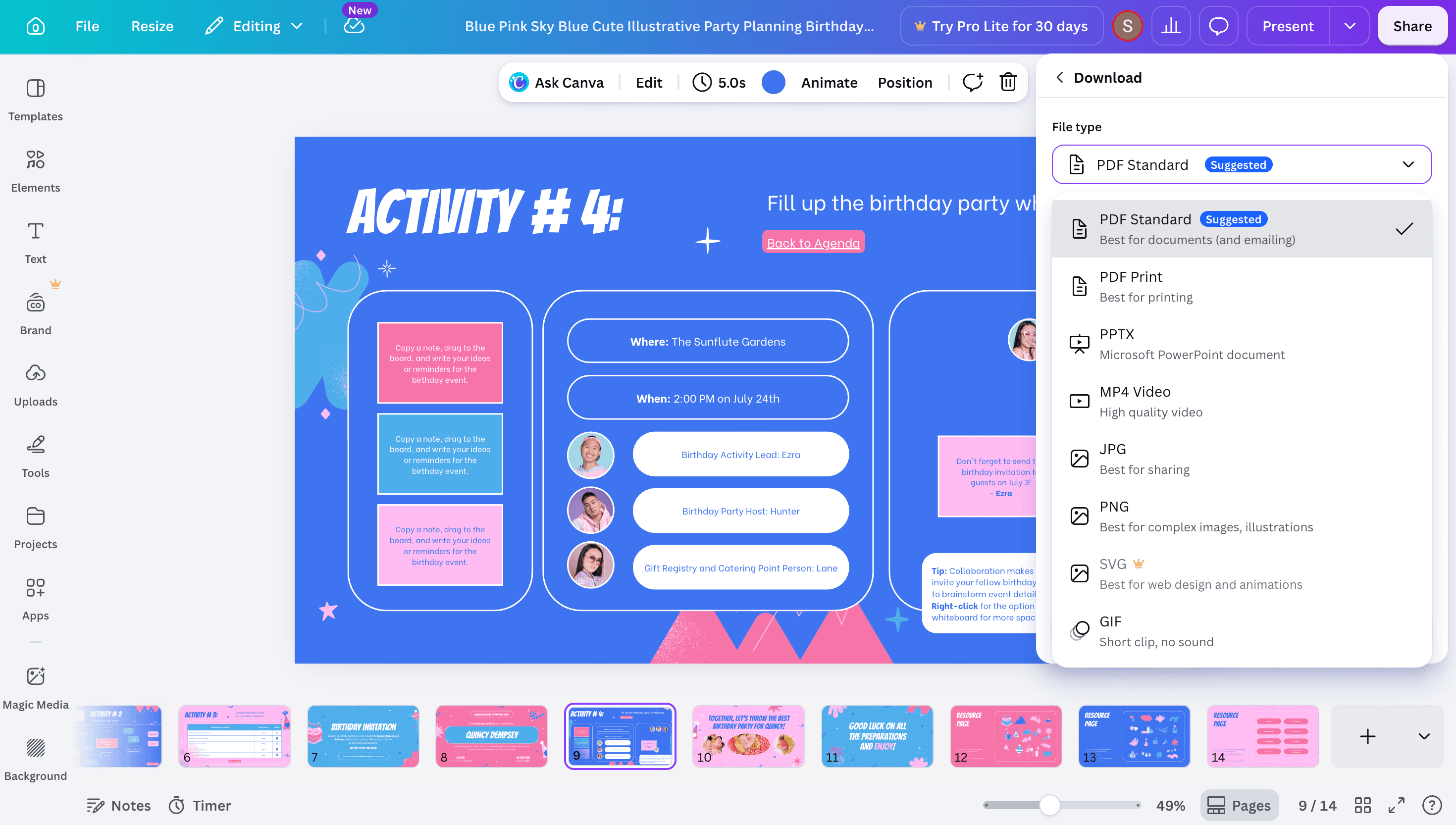
These screenshots are used as evidence, not decoration. Canva is shown through templates, editing, and export options. Figma is shown through its design workspace and prototype review flow. Dev Mode is covered through official Figma documentation because it is not available on the free Starter plan.
Quick verdict
Find your situation below and use the recommended tool. No reading required.
| Your situation | Better choice |
|---|---|
| Creating social media graphics quickly | Canva |
| Designing a website or mobile app UI | Figma |
| Marketing materials and flyers | Canva |
| Prototyping and interactive mockups | Figma |
| Presentations and slide decks | Canva |
| Handing designs off to developers | Figma |
| No design experience — starting from zero | Canva |
| Building a design system for a product team | Figma |
| Brand kits and consistent visual identity | Canva for beginners · Figma for pros |
| Professional product or UX design career | Figma |
What are they?
Best for non-designers creating polished visuals fast — social media, marketing, and presentations.
Best for
+ Social media managers creating daily content
+ Students making presentations or infographics
+ Small business owners designing marketing materials
+ Content creators who need quick branded visuals
+ Teams that want anyone to be able to edit designs
Avoid if
- You are designing the UI or UX of an actual product
- You need to hand off design specs to a developer
- You need a full interactive prototype
- You are working inside a professional product design team
Best for professional designers building digital products — UI, UX, prototyping, and design systems.
Best for
+ UI and UX designers building apps or websites
+ Product teams collaborating on digital products
+ Developers who need design specs and measurements
+ Design teams building and maintaining design systems
+ Anyone learning professional product design
Avoid if
- You have no design experience and need something fast
- You are making social media graphics or flyers
- You need thousands of ready-made templates
- You just want a quick visual without a learning curve
The real difference
Canva is built for anyone to design.
Figma is built for designers to work professionally.
They are not really competitors — they solve different problems for different people. The confusion comes from both being called design tools.
Head to head
Canva
Drag-and-drop interface — anyone can use it within minutes.
No design knowledge required to get a good result.
Templates do most of the layout work for you.
Mobile app makes editing possible anywhere.
Figma
Has a real learning curve — frames, constraints, and components take time.
Designed for people who think in design terms.
Powerful once you know it, but the first week can be frustrating.
Many tutorials and courses available to get up to speed.
Canva
Great for surface-level design: graphics, posters, social posts, slides.
Template-driven — fast but limited if you want to break the mould.
Limited vector tools — you cannot do complex path editing.
Good enough for most everyday visual tasks.
Figma
Full vector editing: pen tool, boolean operations, complex shapes.
Auto layout builds responsive components that adapt as content changes.
Component system lets you build and reuse design elements at scale.
The tool professionals use when design precision actually matters.
Canva
Basic presentation mode and simple animations between slides.
Cannot build clickable flows or interactive product prototypes.
Good enough for a static walkthrough of an idea.
Not designed for UX testing or user research.
Figma
Full interactive prototyping — link frames, add transitions, build flows.
Supports smart animate, overlays, scroll behaviour, and hover states.
Share a prototype link — clients and users can click through it on any device.
Used by professional teams to test products before they are built.
Canva
Real-time collaboration that non-designers can use without training.
Easy sharing — send a link to anyone and they can view or edit.
Good for teams where most people are not designers.
Comments and approval workflows available on paid plans.
Figma
Built for design teams — every team member can work on the same file simultaneously.
Commenting system designed around design feedback loops.
Version history lets you go back to any point in the design process.
Developer mode gives engineers direct access to specs without asking the designer.
Canva
Magic Design: generate layouts from a prompt.
Magic Write: AI text generation for copy and captions.
Background Remover and Magic Eraser help clean up images directly inside the editor.
Free users get limited AI allowance; paid plans increase AI access substantially.
Figma
Figma AI is now part of the product stack, with credits included even on Starter.
AI support is more connected to design workflows: naming layers, generating content, image editing, and Figma Make/Dev Mode contexts.
It is powerful for product teams, but less beginner-friendly than Canva's general design AI.
Canva is still the better AI choice for quick non-designer visuals.
Canva
Free plan includes the drag-and-drop editor, many design types, 5GB storage, and a limited AI allowance.
Canva Pro is listed at US$144/year for one person when checked in July 2026.
Business adds more brand kits, admin/collaboration controls, higher storage, and larger AI allowances.
Free is enough for casual graphics; Pro/Business matter when brand kits, premium assets, and heavier AI use become important.
Figma
Starter is free and includes unlimited drafts plus monthly AI credits.
Professional full seat is listed at US$16/month when checked in July 2026.
Professional adds unlimited files/projects for a single team, team libraries, and stronger handoff.
Figma becomes more valuable when you are collaborating on product design, not when you just need one quick graphic.
Canva
No built-in developer handoff — designers must export assets manually.
Developers cannot inspect dimensions, spacing, or CSS values from a Canva file.
Works fine for marketing teams where developers are not involved.
Not suitable for product teams that need design-to-code workflows.
Figma
Developer Mode gives engineers direct access to every value in the design.
CSS, iOS, and Android code snippets generated automatically.
Spacing, colours, font sizes, and component properties all inspectable.
This feature alone is why most product teams choose Figma over everything else.
Pros and cons
Pros
+ Extremely beginner-friendly — almost no learning curve
+ Large template and asset library for fast everyday design work
+ Strong AI tools: Magic Design, Magic Write, Background Remover
+ Generous free plan for most everyday tasks
+ Real-time collaboration that non-designers can actually use
Cons
- Limited precision — not built for pixel-perfect design work
- No prototyping or interactive flow capabilities
- Cannot hand off designs to developers with specs
- Design output can feel templated if you do not customise carefully
Pros
+ Full vector editing with pixel-perfect precision
+ Real interactive prototyping with clickable flows
+ Developer handoff with code snippets and measurements
+ Design system support: components, variables, auto layout
+ Strong plugin ecosystem and Figma Community files
Cons
- Steeper learning curve — takes real time to get comfortable
- Fewer ready-to-use templates compared to Canva
- Overkill if you just need a quick graphic or presentation
- Free plan is useful for drafts, but paid plans are where team libraries, unlimited team projects, and advanced handoff become practical
Side by side
| Learning curve | Very easy | Moderate to steep |
| Templates | Very large template library | Community files and UI kits |
| Free plan | Yes — 5GB storage + limited AI | Yes — unlimited drafts + AI credits |
| Prototyping | Basic animations only | Full interactive flows |
| Vector editing | Limited | Full — pen tool, booleans |
| AI features | Strong for quick content and image edits | Stronger for product/design workflows |
| Developer handoff | No | Yes — Dev Mode |
| Design systems | No | Yes — components + variables |
| Mobile app | Yes — full editing | View only on mobile |
| Offline use | No — web only | Desktop app available |
| Collaboration | Yes — easy for non-designers | Yes — built for design teams |
| Best for | Marketing, social, presentations | UI/UX, product design |
Export check
Canva makes everyday publishing easier because the download panel exposes formats that students, marketers, and small businesses already use: PDF, PPTX, MP4, JPG, PNG, and more.
By use case
Use Canva if
→ You create Instagram, YouTube, TikTok, or LinkedIn graphics regularly
→ You want templates ready to use without any design setup
→ You are not a designer and need to produce content quickly
→ You want AI to help generate images, captions, and layouts
Use Figma if
→ You are designing a brand's entire social media design system
→ You need reusable components that keep all content pixel-consistent
→ You are a designer creating templates that others will then use in Canva
Best workflow
1. Design your brand's core components and guidelines in Figma
2. Export assets and upload them to Canva as brand kit elements
3. Use Canva for day-to-day content creation within those brand rules
Use Canva if
→ You need a rough wireframe or concept to discuss with a client
→ You want to quickly visualise an idea without investing in Figma's learning curve
→ The final product is a static visual, not an interactive prototype
Use Figma if
→ You are designing the actual screens of an app or website
→ You need to share interactive prototypes for user testing
→ A developer needs to build what you are designing
→ You are working inside a product team with a design system
Use Canva if
→ You want polished slides in under 30 minutes
→ You are not a designer and need templates to guide the layout
→ You want to collaborate with teammates who have no design experience
Use Figma if
→ You are a designer who wants complete creative control over every element
→ You are already comfortable with Figma and find it faster than switching tools
→ The presentation is for a design audience who will expect visual precision
Best workflow
1. Use Canva for general presentations — it is simply faster for this use case
2. Use Figma only if you have a specific design reason and already know the tool
Use Canva if
→ Your clients are non-designers who need to edit the final deliverables themselves
→ You are delivering marketing materials, social templates, or branded documents
→ You want to create a Canva template your client can maintain without you
Use Figma if
→ You are designing websites, apps, or brand systems for professional clients
→ Your client has a developer who needs to build from your designs
→ You are building a scalable design system the client's team will extend
Bottom line
If you are a student, marketer, content creator, or small business owner who needs polished designs quickly — use Canva. It will save you hours and the results will look professional.
If you are a designer, working on a digital product, or need to collaborate with developers — use Figma. It is the tool the industry has standardised on for a reason. The learning curve is worth it if you are serious about design as a craft or career.
FAQ
Yes, significantly. Canva is designed to be usable by anyone within minutes — the drag-and-drop interface and template library handle the hard parts for you. Figma is a professional tool built for designers, and concepts like frames, auto layout, components, and constraints take real time to understand. Expect a few weeks of regular use before Figma feels natural.
Technically yes, but you will hit limitations quickly. Canva lacks prototyping, developer handoff, design systems, and auto layout — all of which matter for serious UI work. You can use Canva to sketch an early concept or rough wireframe, but if you are building an actual product and handing designs to a developer, Figma is the right tool.
For casual visual design, Canva's free plan usually feels more useful because it includes a drag-and-drop editor, many design types, templates, assets, 5GB storage, and limited AI use. Figma's Starter plan is better if you are learning UI or product design because it includes unlimited drafts, UI kits/templates, and monthly AI credits. The better free plan depends on what you are trying to make.
Most professional product and UX designers use Figma — it is the industry standard for designing digital products. Canva is used by marketers, content creators, and business owners who need design output without design expertise. Some designers use both: Figma for professional work and Canva for quick marketing tasks or client-editable deliverables.
No. Canva cannot create interactive prototypes, generate developer handoff specs, build component-based design systems, or handle the kind of precision work that digital product design requires. It is a different tool for a different job. Canva excels at making design accessible to non-designers. Figma excels at giving designers full professional control.
If you want to make graphics, social posts, and presentations — start with Canva. If you want to become a UI/UX or product designer professionally — start with Figma. The two tools serve genuinely different purposes, so the right answer depends on what you are trying to do, not which one is objectively better.
Sources
Pricing, plan limits, AI features, and handoff claims should be checked against official product pages before each major update.
Used for Canva Free, Pro, Business, template/assets, storage, export, and AI allowance details.
Used to verify Canva's one-click background remover positioning and workflow.
Used to verify Canva's Magic Write rewriting and AI text editing features.
Used for Figma Starter, Professional, Dev seat, AI credits, unlimited drafts, and paid-plan details.
Used to verify developer handoff, inspection, code/design connection, and Dev Mode positioning.
Used as a secondary official reference for plan/product availability and education access.
Related guides
Both tools have generous free plans — there is no reason not to try them. Start with Canva if you want something working in 10 minutes. Start with Figma if you are building for a career in product design.